
USB-C cables: check power, data and display separately
A high wattage does not tell you how quickly files will copy or whether a monitor will work.
Evergreen guide; documentation checked September 18, 2026. No new product launch or hands-on test.
In this article
Why the connector is not the specification
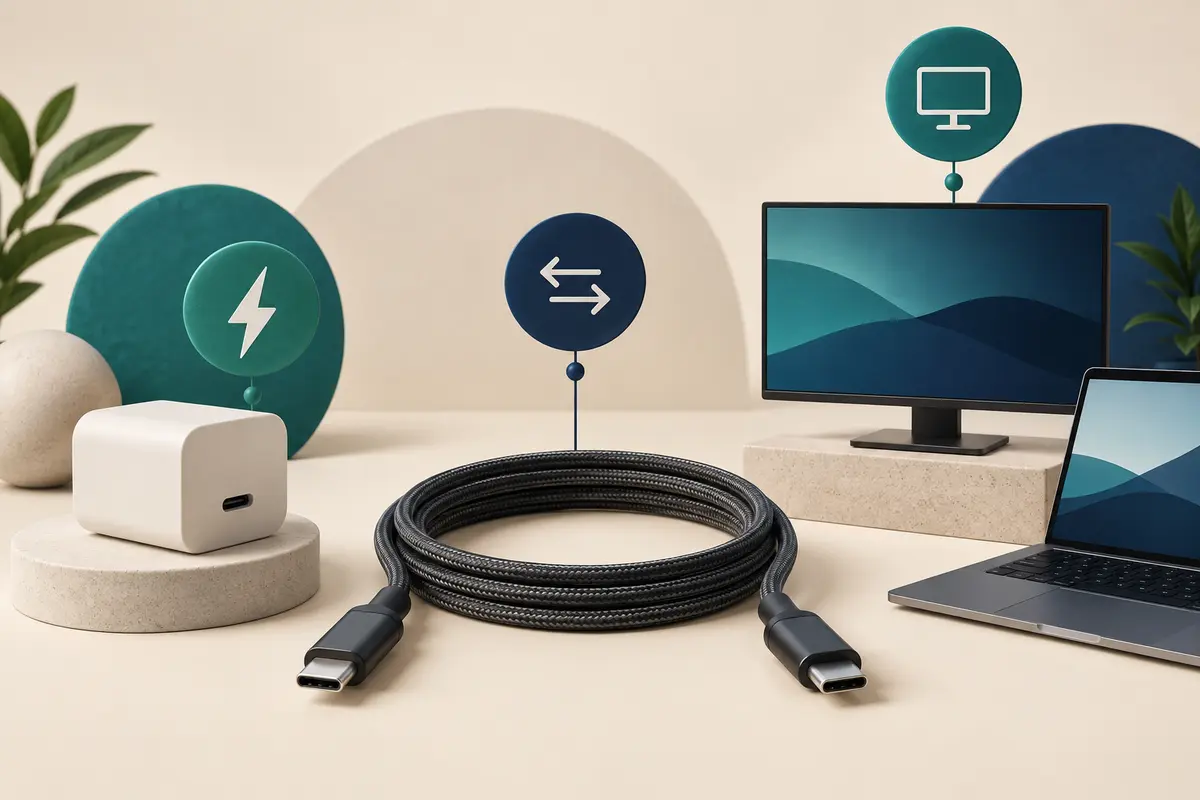
USB-C describes a connector, not a promise of a particular data rate or charging feature. USB-IF distinguishes it from USB Power Delivery and USB4. Its guidance also says USB 2.0 Type-C cables do not include Alt-Mode capabilities. USB-IF terminology guidance.
For a concrete example, Belkin lists its CAB015bt2MBK cable as supporting up to 240W while specifying USB 2.0 for data. That is a manufacturer specification, not our test or a purchase recommendation. Belkin specifications.
Read the two numbers separately
USB-IF’s cable-logo guidance separates power ratings from data performance. It notes that USB 2.0 cables rated for 60W or 240W can carry data at up to 480Mbps without displaying that speed in the charging logo. A wattage alone therefore cannot answer a data-transfer question. USB-IF cable-logo guidance.
Power Delivery lets compatible equipment negotiate power; USB-IF describes support up to 240W. This is an available capability, not the power every connected device receives. USB Power Delivery overview.
Our buying method is to write a three-line requirement before looking at prices: the power your device needs, the data task you perform, and the display connection you intend to use. Leave unused features out of the decision rather than treating the largest number as automatically better.
Match the cable to your actual task
| Task | What to verify | Avoid this shortcut |
|---|---|---|
| Charge a laptop | Device power requirements, charger output at the chosen port and cable power rating | Reading only the charger’s total wattage |
| Copy large files | Numeric data rating, computer port, external device and any hub in between | Assuming a charging claim describes transfer speed |
| Connect a monitor | The display mode supported by the device, cable and monitor or adapter | Assuming matching connector shapes establish compatibility |
For example, Apple’s iPad guidance calls for a high-bandwidth cable for high-resolution displays and describes model-dependent display support. Use the instructions for your exact device and monitor rather than extending one model’s limits to all USB-C equipment. Apple’s iPad connection guide.
Put a transfer-speed claim into perspective
Imagine copying one 10GB file, using decimal units: 10GB is 80 gigabits. Dividing by a hypothetical continuous 0.48Gbps gives about 167 seconds. Dividing by 10Gbps gives 8 seconds.
Those are idealized arithmetic limits with no overhead, not expected stopwatch results. Storage, protocol overhead, the computer and other equipment can make the real transfer slower. The calculation explains why data capability may matter for large backups even when both cables charge adequately. It does not establish that buying a faster cable alone will deliver either result.
Check a failure before buying a replacement
- Write down the exact device, port, cable model and accessory. Check their documentation against the task you want.
- If charging works but a display does not, investigate the display-support row; charging is not a complete compatibility test.
- If files copy slowly, look for a lower data rating anywhere in the documented chain before blaming the cable.
- Where safe and supported, compare with the cable supplied for that accessory. Change one component at a time so the result is interpretable.
- If a listing omits the needed capability, ask for a specification or choose a better-documented option. Do not turn missing information into an assumed feature.
For a certification claim, use USB-IF’s product search and the exact model. The directory is for certified products and is maintained by member companies; a similar name or an unverified marketplace icon is not a match. We have not certified or tested a cable.
Sources & dates
- USB-IF: terminology and capabilities
- USB-IF: cable-logo power and data guidance
- USB-IF: Power Delivery
- Belkin: CAB015bt2MBK specifications
- Apple: connect an iPad using USB-C
- USB-IF: certified product search
Sources checked September 18, 2026. Prepared with AI assistance. Read our editorial standards.

Comments
Loading comments…